To import Instagram videos to WordPress automatically, connect your Instagram account to Intagrate Pro, tick Save Instagram Media to Media Library, and add the video shortcode to the account’s template. Each new video or Reel then becomes a WordPress post, with the video file in your media library, playing in WordPress’s own video player, and its cover image as the featured image. This guide covers the settings that matter for video, carousels that mix photos and videos, and what to check when a video import stalls or a post is left as a draft.
If you only want to show one Reel on one page, you don’t need to import anything: embed it with Instagram’s embed code instead. Importing is for putting your own videos on your site as they’re posted, as content you keep.
Automatically Publish Instagram Media to WordPress
Intagrate is the best WordPress Instagram plugin for posting Instagram media to WordPress.
What you need
- Intagrate Pro. Intagrate Lite, our free plugin, is for photos: it doesn’t import videos or Reels. Its settings page shows a video as its cover image, and video posting is one of the things it leaves to Pro.
- A professional Instagram account (Creator or Business). Since Meta shut down the Basic Display API, personal accounts can’t be connected to any plugin. Switching is free; our guide to the API change walks through it.
Reels arrive through the Instagram API as videos, so Intagrate imports a Reel the same way as any other video, with one exception Instagram sets. When a Reel uses licensed music from Instagram’s audio library, Instagram doesn’t give apps the video file, only its cover image. Intagrate can then import the cover and caption, but not a playable video. Reels with your own sound import in full.
How to import Instagram videos to WordPress with Intagrate Pro
Each Instagram account is set up under Intagrate, then All Accounts. Open the account (or add a new one and click Login to Instagram), then:
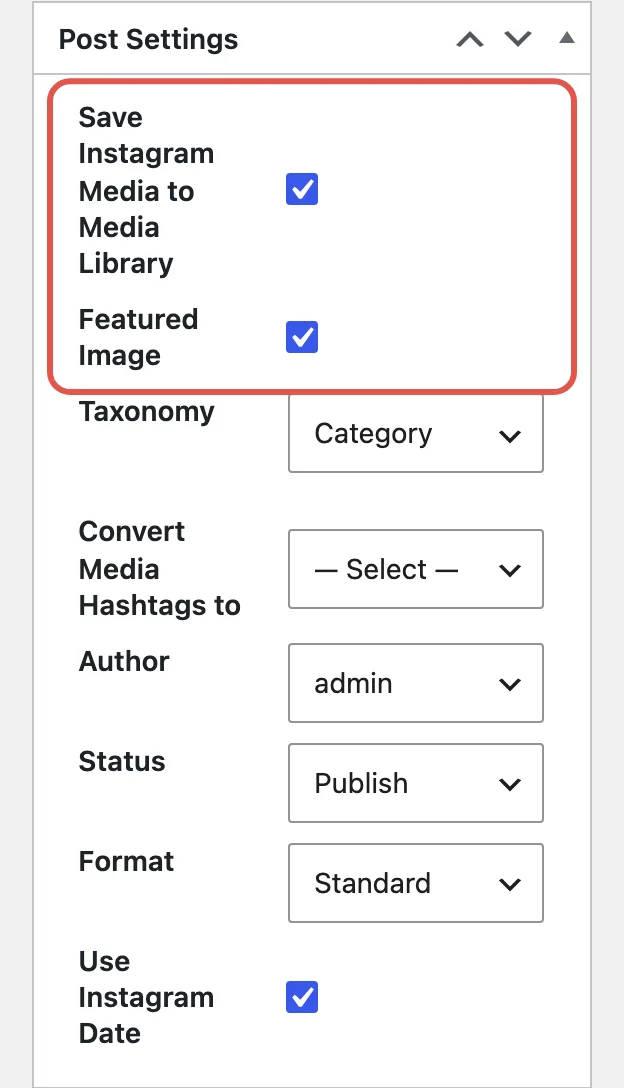
- In Post Settings, tick Save Instagram Media to Media Library. This downloads each video file into WordPress, attached to its post. Without it, the post plays the video from Instagram’s servers, and Instagram’s file links expire, so those videos stop playing after a while. That’s the usual reason an imported video that worked at first later shows a blank player.
- Tick Featured Image, which appears once saving is ticked. For a video, Intagrate saves the video’s cover image to the media library as well and sets it as the post’s featured image, so your theme’s blog pages and social shares get a picture rather than an empty space.
3. Check that the account’s content template plays videos (next section).
4. Choose a Status. Publish puts posts live as they arrive; Draft holds them for you to check first.
5. Click Update to save the account.
If you’d rather every post used the same image, set one in the account’s Custom Featured Image box. It overrides the cover image for every post the account creates.
Show the video in the post
What a post contains is set by the account’s title and content, using template tags that Intagrate fills in for each Instagram post. A new account starts with this content:
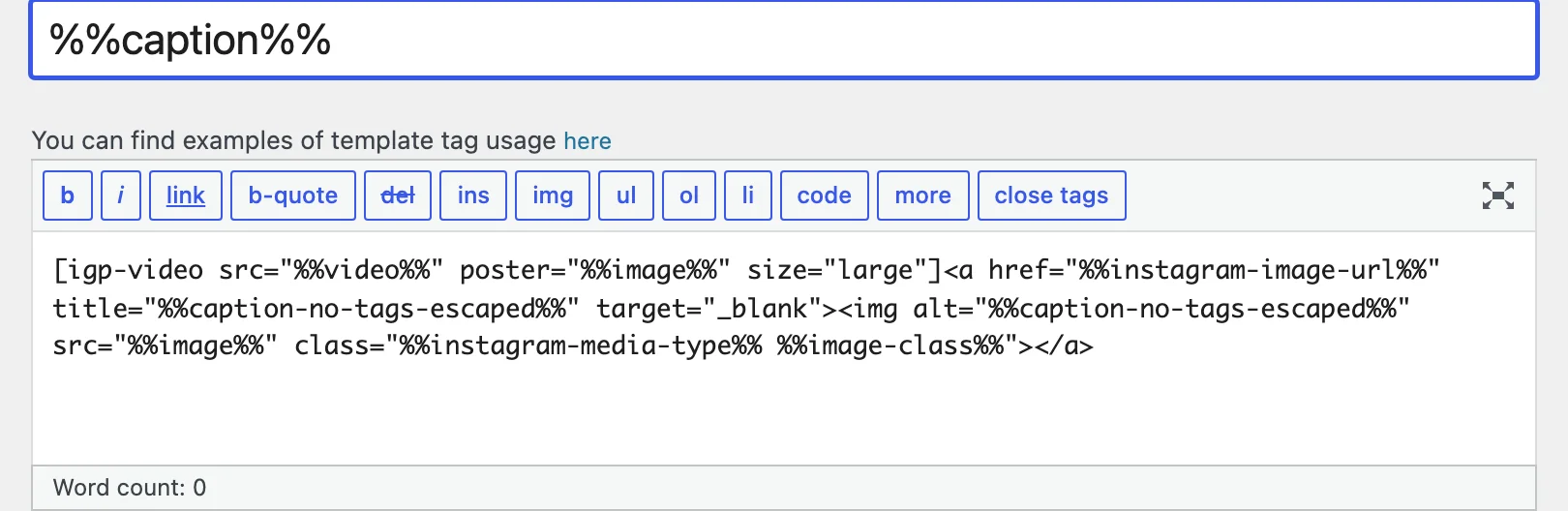
The [igp-video] shortcode at the start is the video player. For a video, it plays the file in WordPress’s built-in player with the cover image as the poster frame; for a photo, it outputs nothing. The image after it carries the class %%instagram-media-type%%, which is video for a video, and Intagrate’s stylesheet hides it, so a video post doesn’t show the cover image twice. If you’ve changed an older account’s content and videos don’t appear, add the shortcode back:
[igp-video src="%%video%%" poster="%%image%%" size="large"]
The tags for video:
| Tag | What it gives you |
|---|---|
%%video%% |
The video’s address: in your media library if you save media, otherwise on Instagram |
%%wordpress-video-url%% |
The media library copy only; empty if you don’t save media |
%%instagram-video-url%% |
Instagram’s own link to the video file |
%%image%% |
For a video, its cover image |
%%instagram-media-type%% |
image, video or carousel, useful as a CSS class |
These are addresses, not players: put them inside the shortcode or your own <video> tag. Our videos guide has more examples, including showing a video or an image depending on the post.
Carousels with videos
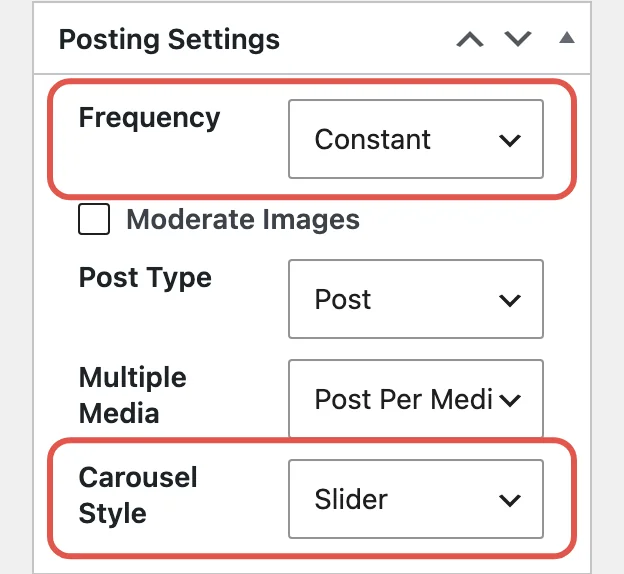
A carousel that mixes photos and videos comes across as one post. Put %%carousel%% in the account’s content (below your existing tags, so single posts still work), and choose how it looks with Carousel Style in Posting Settings: Slider, or Individual Images/Videos one after another. With media saving on, the videos inside a carousel go into your media library too, and each plays in the same video player. The carousel guide shows an example.
Import only videos
To send only your videos and Reels to WordPress, perhaps into their own category or post type, set Media Filter to Only Videos. It’s in the account’s Instagram Settings box once the account is connected. Anything that isn’t a single video is set to Ignore in the account’s media list rather than posted. That includes carousels, even ones with a video in them, so post those through a second account set to Images and Videos if you want them.
When a video import stalls or posts stay as drafts
Intagrate creates each post as a draft first, downloads the media into it, and only then gives the post the status you chose. Videos are far bigger than photos, so if anything stops the download part way, you’re left with a draft and no video. Work through these in order:
- Check the Reel’s audio. If the video is a Reel with licensed music, Instagram doesn’t share the video file, so there’s nothing to download. Open it in the Instagram app and look at the audio label next to the music note: a licensed track shows the song and artist, while your own sound shows as “Original audio”. Reels with original audio import normally.
- Check the account’s Status. If it’s set to Draft, drafts are what you asked for.
- Look at the account’s Instagram Media box. Media that was mid-import when it stopped shows as Posting, and Intagrate won’t retry it by itself.
- Turn on debug mode. Go to Intagrate, then Settings, open License & Support, and tick Debug Mode. Each run that finishes adds to
debug.txtin the plugin’s folder. A line starting “Error Attaching video” means the download or the save into the media library failed, with the reason after it. If a run leaves a draft but adds nothing to the file, it was stopped before it finished, which points to the next step. - Give the download time. Intagrate asks PHP not to time out, but many hosts stop long requests anyway. With Frequency set to Constant, the import runs while a visitor loads your blog page, which is the worst time for a large download. Cron Job, which your server calls on a timer (see setting up the cron job), or Scheduled, gives it a request of its own. Your host can also tell you the request time limit and raise it.
- Retry. Delete the empty draft and empty it from the trash. In the Instagram Media box, tick the stuck media and click Pending. Click Update on the account, which also clears the lock that stops a second run starting while one is in progress, then use Manual Post (with Frequency on Manual) to watch it go through.
The troubleshooting guide covers the other reasons media gets skipped, such as duplicates across accounts.
Import or embed
| You want to | Use |
|---|---|
| Show one Reel on one page | Instagram’s embed code |
| Put every new video on your site automatically, as your own posts | Intagrate Pro |
| Keep the video files if a post leaves Instagram | Intagrate Pro, saving media to the media library |
| Import photos only, for free | Intagrate Lite |
Video and Reels importing is part of Intagrate Pro, along with carousels, templates and any number of accounts: see the plans on our pricing page. If you only post photos, Intagrate Lite is free on wordpress.org.
Automatically Publish Instagram Media to WordPress
Intagrate is the best WordPress Instagram plugin for posting Instagram media to WordPress.

Posted by Iain
Follow me on Twitter

