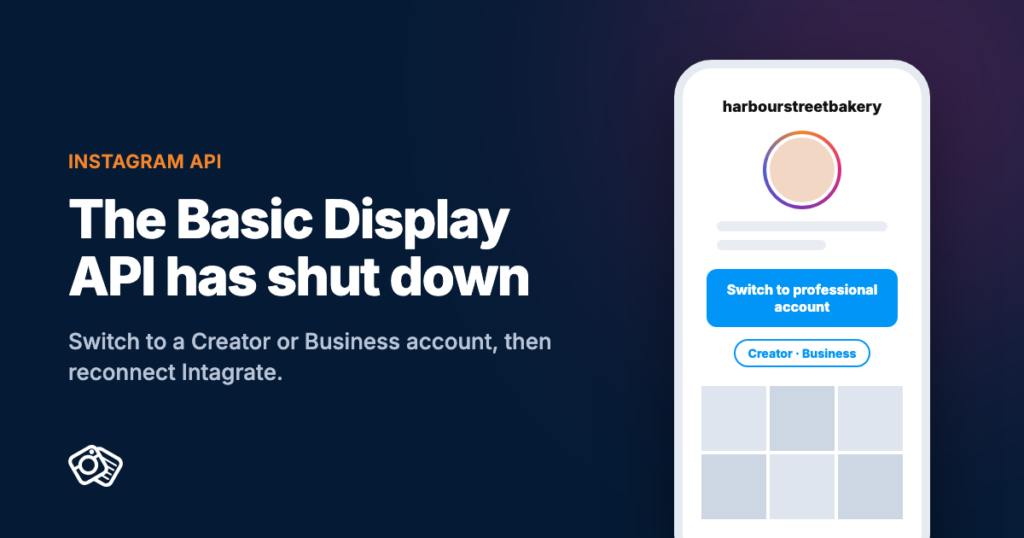
Meta shut down the Instagram Basic Display API on 4 December 2024. It was the API that let plugins like Intagrate read a personal Instagram account, and nothing replaced it for personal accounts: today, only professional accounts (Creator or Business) can be connected to any WordPress plugin. If your Instagram posts stopped arriving on your site, switch your Instagram account to a professional one, which is free, update Intagrate, and reconnect it. This page explains each step, including how to reconnect without importing your posts a second time.
We first published this page in 2020, when the Basic Display API was new and Intagrate moved over to it. It’s now about the API’s shutdown instead.
Automatically Publish Instagram Media to WordPress
Intagrate is the best WordPress Instagram plugin for posting Instagram media to WordPress.
What happened to the Instagram Basic Display API
- 2020: Facebook (now Meta) replaced the original Instagram API with the Basic Display API, which worked with personal and professional accounts.
- September 2024: Meta announced the end of the Basic Display API.
- 4 December 2024: the Basic Display API shut down. Every request to it now fails.
Its replacement is the Instagram API with Instagram Login, which Intagrate uses. It only works with professional accounts. You still log in with your Instagram username and password, and you don’t need a Facebook Page.
Signs your site is affected
- New Instagram posts stopped appearing on your site around December 2024, or some time after it.
- Intagrate shows a notice asking you to reconnect your Instagram account.
- Logging in to Instagram from Intagrate doesn’t complete, because the account is a personal one.
Step 1: Switch to a Creator or Business account
In the Instagram app:
- Go to your profile and tap the menu in the top right.
- Tap Account type and tools, then Switch to professional account.
- Pick a category that describes what you do.
- Choose Creator or Business. Either works with Intagrate. Business suits shops, restaurants and other companies; Creator suits individuals.
Switching is free and takes a minute. Your posts, followers and username stay the same, and you get access to Instagram’s insights as a bonus. You can switch back later, but Intagrate will stop being able to read your posts if you do.
Step 2: Update Intagrate
Update to the latest version before you reconnect: Intagrate Pro 1.10.1 or Intagrate Lite 1.4.2, or anything newer. Both versions fix accounts that disconnected again after about 60 days: the plugin now renews Instagram’s access before it runs out.
Intagrate Lite updates from your Plugins screen like any other plugin. Intagrate Pro updates there too, as long as its licence key is active on the site. Licences don’t renew automatically, so if yours has run out, renew it from the pricing page first.
Step 3: Reconnect without duplicate posts
Reconnecting can bring your recent Instagram posts back into Intagrate’s list as if they were new. Done in the right order, nothing gets posted twice.
Intagrate Pro
Do this for each Instagram account under Intagrate, then All Accounts. The accounts guide covers the screen in more detail.
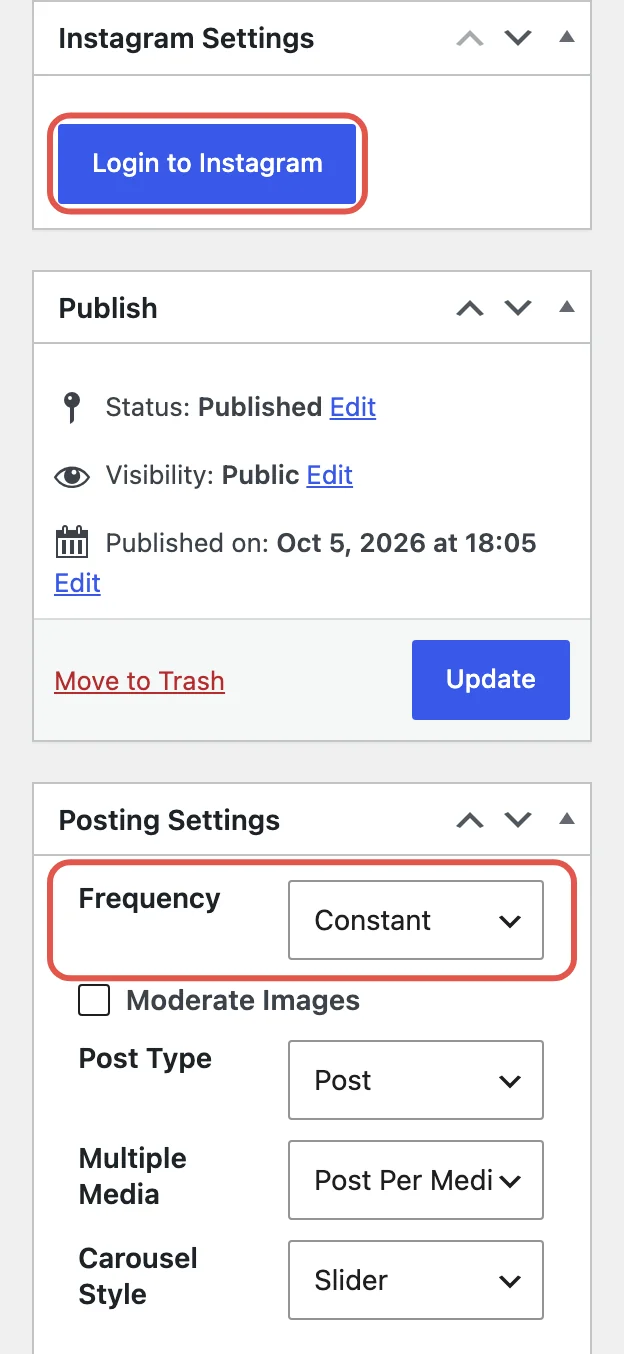
- Note the most recent Instagram post that’s already on your site.
- Open the account and set Frequency to Manual, then update the account, so nothing posts while you reconnect.
- Click Disconnect, then Login to Instagram, and log in with your professional account.
- In the list of Instagram media, click Load More until you can see the post you noted in step 1.
- Select that post and every older one that’s already on your site, and set them to Ignore. Leave any posts that are genuinely missing from your site.
- Use Manual Post for any missing posts you want now, then set Frequency back to what it was before.
Intagrate Lite
- Go to Settings, then Intagrate Lite, and click Log in in the notice at the top of the page.
- Log in to Instagram with your professional account and allow access.
- Back on the settings page, check Last Image. Intagrate Lite posts every image published after the one selected there, so it should be the most recent post that’s already on your site. Then click Update Options.
What the new API can’t do
The Instagram API with Instagram Login only gives a plugin access to your own account’s posts. So:
- Personal accounts can’t be connected to any plugin.
- Other people’s posts by hashtag can’t be imported. Intagrate Pro’s hashtag stream is marked “All Hashtagged Media (Deprecated)”, because Instagram no longer provides it. Hashtags in your own captions still work: Pro can filter by them and turn them into WordPress tags.
Your own photos, videos and carousels all still come across. Intagrate Pro imports videos and Reels too; Lite imports images.
Still stuck?
The troubleshooting guide covers the common problems. If you’re on Intagrate Pro, contact us with your site address and what you see, and we’ll help you reconnect.
If you’re new here and want your Instagram posts on your WordPress site automatically, install Intagrate Lite free from wordpress.org, then connect your professional account.
Automatically Publish Instagram Media to WordPress
Intagrate is the best WordPress Instagram plugin for posting Instagram media to WordPress.

Posted by Iain
Follow me on Twitter

