To post Instagram photos on WordPress automatically, install a plugin that turns each new Instagram post into a WordPress post, connect it to your Instagram account once, and leave it running. We built Intagrate to do exactly that. Intagrate Lite is free and posts your photos; Intagrate Pro adds videos, carousels, templates and more than one account. This guide sets up both, from connecting your account to your first post appearing on your site.
Two things to know first:
- You need a professional Instagram account (Creator or Business). Meta shut down the API for personal accounts in December 2024, so no WordPress plugin can connect a personal account any more. Switching is free and takes a minute in the Instagram app; our guide to the API change shows how. You don’t need a Facebook Page.
- This creates real posts, not a feed. Each Instagram photo becomes its own WordPress post, with the caption as the title and the photo saved in your media library if you want it. If you’d rather show a grid of your latest photos in a sidebar, you want a feed plugin instead: our roundup of Instagram plugins for WordPress covers both kinds.
Automatically Publish Instagram Media to WordPress
Intagrate is the best WordPress Instagram plugin for posting Instagram media to WordPress.
Lite or Pro: which one you need
| Intagrate Lite (free) | Intagrate Pro | |
|---|---|---|
| New photos become posts | Yes | Yes |
| Save photos to the media library, set the featured image | Yes | Yes |
| Choose category, author, status, post type | Yes | Yes |
| Videos and Reels | No | Yes |
| Every image in a carousel | No | Yes |
| Instagram accounts | One | As many as you like |
| Posting schedule | When your blog page is visited | Visits, a schedule, a cron job or by hand |
| Approve each photo before it’s posted | No | Yes |
| Post titles and content | Title and image tags | Templates with captions, hashtags, locations, maps and more |
If you post photos and want them on your blog, start with Lite. You can move to Pro later without losing anything that’s already posted.
How to post Instagram photos on WordPress automatically with Intagrate Lite
1. Install the plugin
In your WordPress dashboard, go to Plugins, then Add New Plugin, search for “Intagrate Lite”, and install and activate Intagrate Lite.
2. Connect your Instagram account
Go to Settings, then Intagrate Lite, and click Log in in the notice at the top of the page.
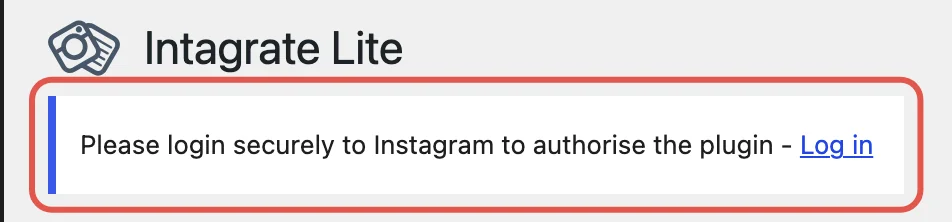
Instagram asks you to log in and allow access. Use your professional account. Back in WordPress, the page shows “Connected to Instagram as” your username, with your recent photos and the settings below.
3. Choose where to start
Last Image is the most important setting on the page. Intagrate Lite posts every Instagram photo published after the one selected there, and nothing before it. When you first connect, it’s set to your most recent photo, so only the photos you post from now on come across.
To bring in some of your recent photos as well, pick an older one in the list.
4. Set up the posts
The settings below Last Image control what each post looks like:
- Select Image Saving: Save Image to Media Library keeps a copy of each photo on your site, which is what you want: it stays even if the photo leaves Instagram. Link to Instagram Image shows the photo from Instagram’s servers instead.
- Featured Image Config: Featured and Post Image puts the photo in the post and sets it as the featured image, so your blog page and social shares get a picture. Featured Only is for themes that already show the featured image at the top of each post, so the photo doesn’t appear twice.
- Post Category, Post Author, Post Format and Custom Post Type decide where the posts go. A category of their own, such as “Instagram”, makes them easy to list or leave out of your main blog.
- Post Status: Publish puts posts live straight away. Draft holds them for you to check first.
- Post Date: Date at Posting dates each post when it’s created; Instagram Image Created Date uses the date you posted the photo.
- Custom Title Text and Custom Body Text add your own words around the photo.
%%title%%is the caption and%%image%%is the photo, for exampleFresh from the oven: %%title%%. Default Title Text is used when a photo has no caption.
Click Update Options to save.
5. Post a photo
Intagrate Lite checks Instagram for new photos when someone visits your blog’s posts page (or the category page you post into), at most once a minute. It waits until a photo is two minutes old, so Instagram has finished processing it. Post a photo on Instagram, wait a few minutes, then open your blog page: the new post appears.
If your site has no separate posts page, tick the box under Advanced Settings to bypass the is_home() check. Intagrate Lite then checks on any page, which is more work for your server, so leave it off unless you need it.
How to do it with Intagrate Pro
Intagrate Pro works the same way, with more control. Each Instagram account you connect is set up as an Intagrate account, and each can post with different settings: one into your blog, another into a portfolio post type, for example. The accounts guide explains every setting on the screen.
- Go to Intagrate, then Add Account. Click Save Draft, then Login to Instagram, and log in with your professional account.
- The account’s Instagram Media box lists your recent posts as Pending, ready to post. Nothing is posted while the account is a draft, so this is the time to tick any older posts you don’t want on your site and set them to Ignore.
- In Posting Settings, choose the Frequency. Constant checks when visitors load your blog page, like Lite. Scheduled posts hourly, daily, weekly or on another schedule, at a time you choose. Cron Job lets your server call Intagrate on a timer (setting up the cron job), the most reliable choice on a busy or cached site. Manual posts only when you click Manual Post.
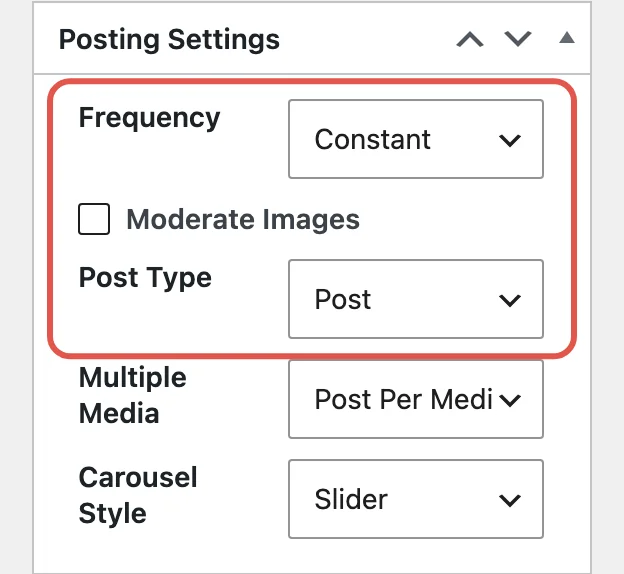
Tick Moderate Images to approve each photo yourself before it’s posted, and choose the Post Type the posts are created as.
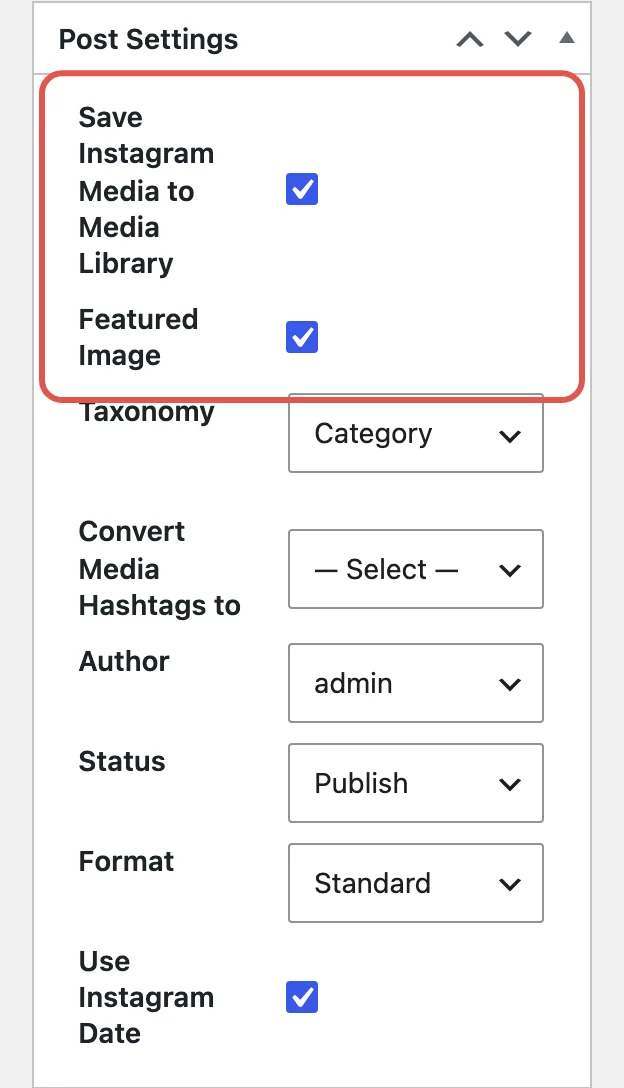
4. In Post Settings, tick Save Instagram Media to Media Library and Featured Image, then pick the category, author and Status. Photos saved to the media library get alt text: the alt text written on Instagram if there is one, otherwise the caption.
5. The title and content boxes at the top of the account are the template for every post, filled in with template tags. Put %%caption%% in the title box for the Instagram caption. A new account’s content already shows the photo, or plays the video for a video post.
6. Click Publish. From now on, every new Instagram post is created on your site according to the account’s frequency.
Pro imports videos and Reels too, and every image in a carousel, as a slider or one after another. Our guide to importing Instagram videos and Reels covers the settings for those.
What about IFTTT, Zapier or embedding?
Automation services such as IFTTT and Zapier can create a WordPress post for each new Instagram post too. They run outside your site, need a login for your WordPress site, and their free plans are limited. A plugin runs inside WordPress, so it can save the photo to your media library, set the featured image and use your own categories and post types.
If you only want one or two photos on a page, you don’t need anything automatic: embed the post with Instagram’s embed code. Pasting an Instagram link into the WordPress editor no longer embeds it, because WordPress dropped Instagram’s embeds in 2020.
If photos don’t appear
- Check the connection. If Instagram’s access runs out, Intagrate Pro shows a “Reconnection Required” notice in your dashboard with a link to reconnect. In Lite, open Settings, then Intagrate Lite: if it shows the Log in link instead of “Connected to Instagram as”, log in again.
- Visit your blog page. With Lite, or Pro on Constant, nothing happens until someone loads your blog’s posts page. A page cache can stop that from reaching WordPress; Pro’s Scheduled or Cron Job frequency avoids it.
- Check Last Image (Lite) or the account’s Instagram Media box (Pro). A photo set to Ignore in Pro, or older than Last Image in Lite, isn’t posted.
The troubleshooting guide covers the rest, from expired connections to duplicates.
Ready to start? Install Intagrate Lite free from wordpress.org and connect your professional account. For videos, carousels and more than one account, see Intagrate Pro’s plans.
Automatically Publish Instagram Media to WordPress
Intagrate is the best WordPress Instagram plugin for posting Instagram media to WordPress.

Posted by Iain
Follow me on Twitter

