
Intagrate Pro can fill your Advanced Custom Fields (ACF) fields from each Instagram post it imports. Choose what goes into each field in the ACF Fields box on your Intagrate account: the caption in a Text field, the link to the post in a URL field, the images in a Gallery, the hashtags in a Taxonomy field, and every image and video of a carousel in a Repeater. It’s built for sites made with page builders like Bricks, Elementor or Oxygen, where a template shows each field in its own place.
ACF field mapping is part of Intagrate Pro from version 1.13.0, and works with ACF and ACF PRO. The Gallery and Repeater field types come with ACF PRO.
Before you start
The ACF Fields box shows when ACF is active. To fill your fields, the account needs:
- Post Type: the post type your ACF field group is shown on. Set it in the account’s Posting Settings box. A field group shows on a post type when its location rule is Post Type is equal to that type.
- Multiple Media set to [post type] Per Media, also in Posting Settings. Intagrate fills ACF fields when it creates one post for each Instagram post. With Media Grouped or Same Post, the box says so.
- Save Instagram Media to Media Library turned on, in the Post Settings box, for Image, Gallery and Repeater fields. Those fields hold media library items, so the images and videos need saving there first.
If you change the account’s Post Type, update the account to see the new post type’s fields.
Choose what goes in each field
Edit your Intagrate account and scroll to the ACF Fields box. It lists the fields of every field group shown on the account’s post type, under their group’s name, with each field’s name and type.
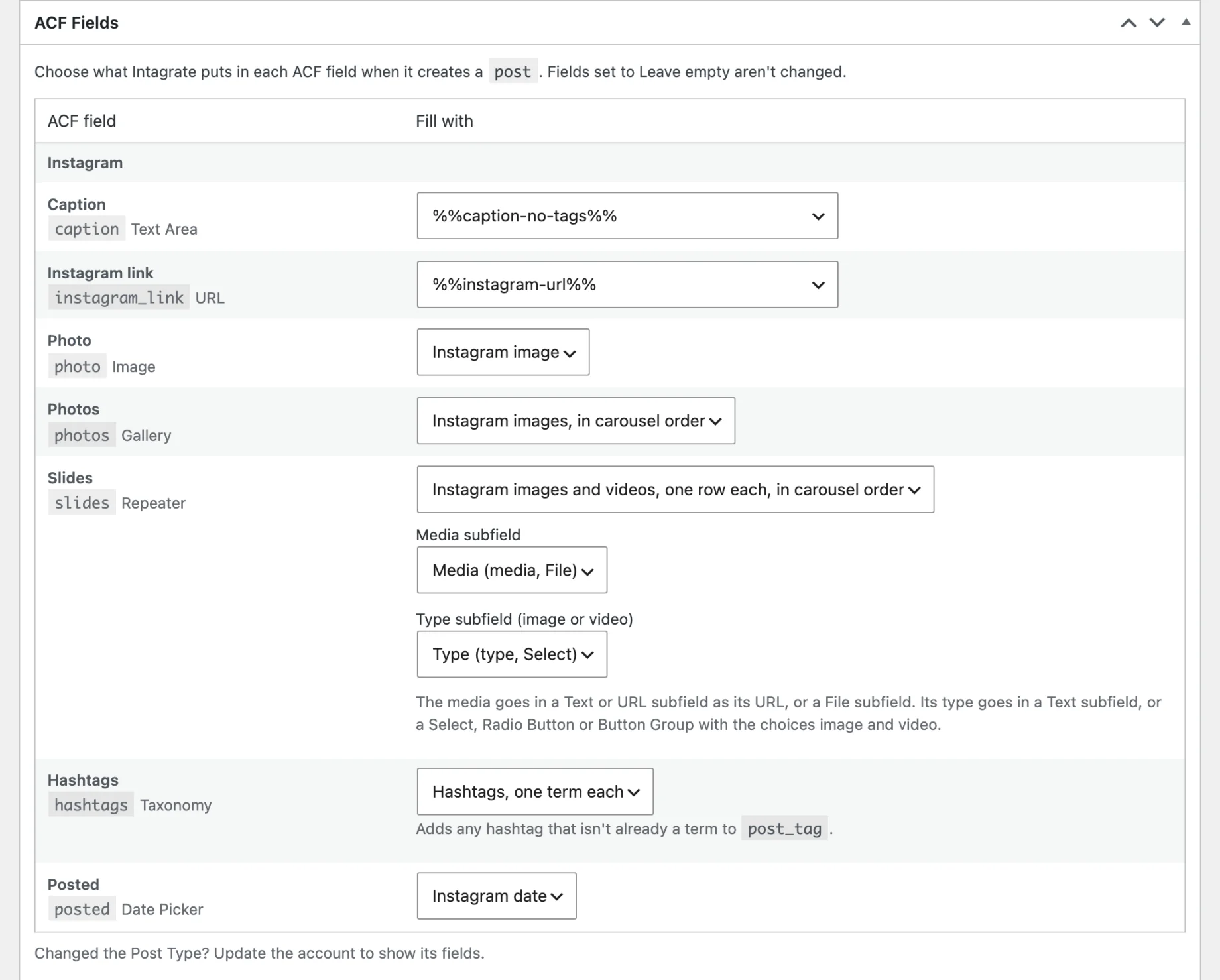
For each field, choose what Intagrate puts in it. Leave empty leaves the field alone. Then update the account. Only new posts get the fields filled in: posts Intagrate created before aren’t changed.
Text fields: a template tag or your own template
Text, Text Area, WYSIWYG Editor, URL, Email, Number and oEmbed fields take a template tag, the same tags you use in the account’s title and content. Pick one from the list, for example:
%%caption%%: the caption, with its hashtags%%caption-no-tags%%: the caption without hashtags%%instagram-url%%: the link to the post on Instagram, for a URL field%%username%%: the Instagram username%%image-date%%: the date it was posted
To mix your own words with tags, choose Custom template and type it in the box that appears, such as Photo by %%username%%: %%caption-no-tags%%.
Image fields: the Instagram image
An Image field gets the post’s main image from the media library. For a carousel that’s its first image, and for a video it’s the video’s cover image.
Gallery fields: the images, in carousel order
A Gallery field gets the post’s images, in the same order as the carousel on Instagram. A single image post gets that one image, and a video post its cover image. A carousel’s videos are left out of a Gallery: use a Repeater for a carousel of images and videos.
Repeater fields: images and videos, one row each
A Repeater can hold a carousel’s images and videos, in order, one row for each. That’s the field to use for a slider in your page builder, with an image or a video in each slide.
Give the Repeater two subfields in ACF:
- The media: a Text or URL subfield gets the file’s URL from your media library, or a File subfield gets the media library item itself. A File subfield keeps working if your media URLs ever change.
- The type (optional):
imageorvideo, so your template can show the right element. Use a Text subfield, or a Select, Radio Button or Button Group with the choicesimageandvideo.
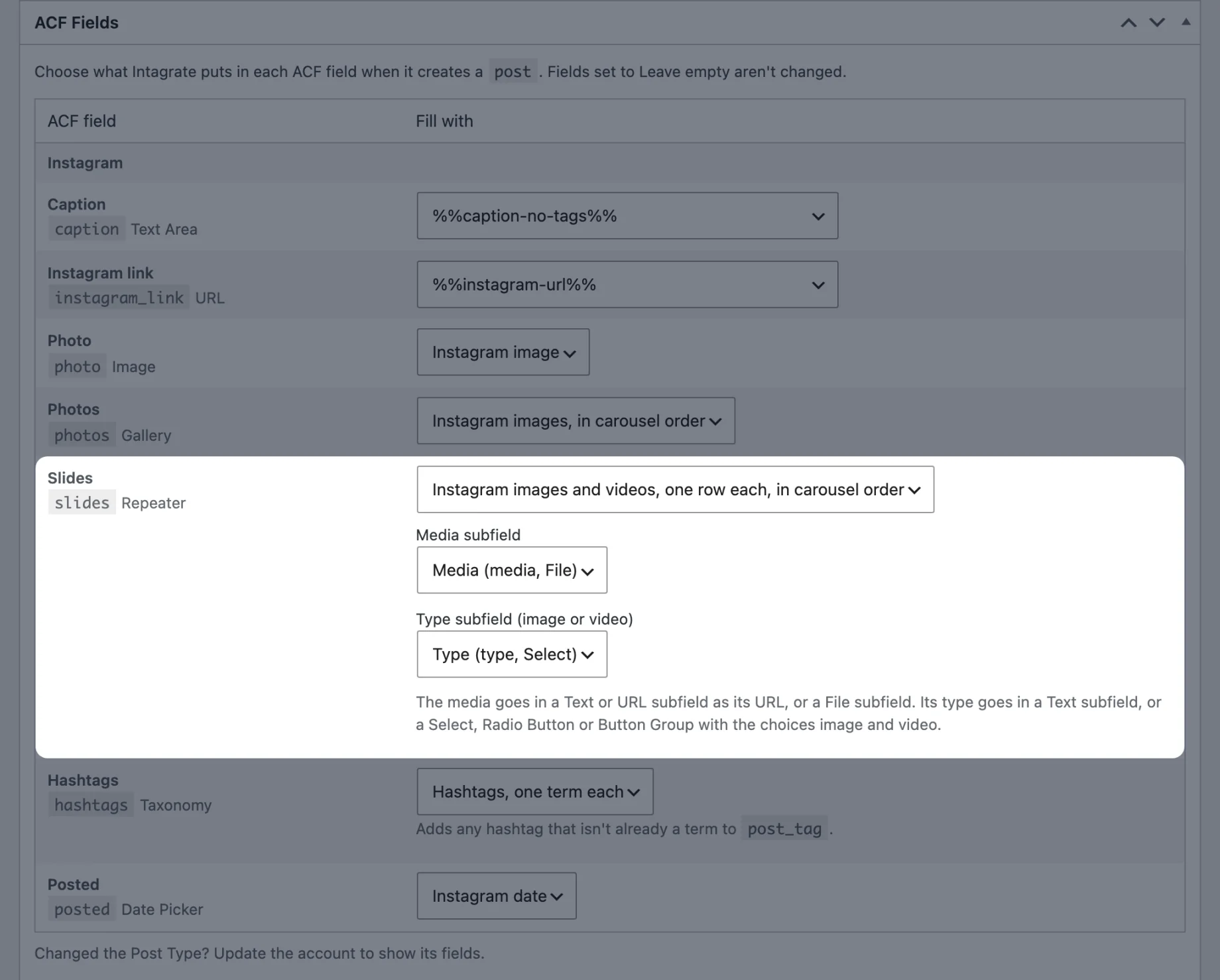
In the ACF Fields box, choose Instagram images and videos, one row each, in carousel order for the Repeater, then pick its Media subfield and, if you added one, its Type subfield (image or video). The names of the Repeater and its subfields are up to you.
A video’s row is the video file, not its cover image. A single image or video post gets one row. If an image or video couldn’t be saved to the media library, it’s left out, and the other rows keep their order.
If you delete a subfield or change its type in ACF, the box shows Missing subfield, choose again. Pick a subfield and update the account.
Taxonomy fields: hashtags, one term each
A Taxonomy field gets the post’s hashtags, one term for each, in the field’s taxonomy. Any hashtag that isn’t a term yet is added. A field set to show as a Select or Radio Button, which holds one term, gets the first hashtag.
If the field has Save Terms turned on, the post gets the terms too, as it would when you edit it.
Date fields: the Instagram date
A Date Picker or Date Time Picker field gets the date the post was published on Instagram, in your site’s timezone.
The Custom Fields box and ACF
Before version 1.13.0, the way to fill a custom field was the Custom Fields For Template Tags box on the account. ACF 6.8.11 stops that box adding a field with the same name as an ACF field, so saving one there fails with “Please provide a custom field value.”
The ACF Fields box doesn’t have that problem, so when ACF is active, the Custom Fields box is hidden. Open Screen Options at the top of the account screen to show it again. An account that already has custom fields in that box keeps showing it, and the fields it has keep being copied to new posts.
Show the fields on your site
Once the fields are filled in, show them with your page builder’s dynamic data or with ACF’s get_field() in your theme. In Bricks, for example, loop over the Repeater with a Slider (Nestable) and use the media subfield in an Image or Video element.
For anything the box doesn’t cover, such as a Group field or a value worked out in code, see the igp_acf_field_sources and igp_acf_field_value filters in Developer Hooks.
ACF field mapping is part of Intagrate Pro: see pricing to get it.